Open Jira Timeline for the first time, and you might think, “Well, that’s a Gantt chart.” There are bars on a calendar, dates you can drag, and arrows between tasks. Case closed?
Not quite. Jira Timeline is a Gantt-style view built for work that already lives in Jira. A dedicated Gantt chart is a scheduling tool, with more ways to connect tasks and shift dates when plans change. And for many teams, the project plan doesn’t live in Jira at all. It lives in Confluence, next to the brief, the meeting notes, and the decision log.
This guide compares Jira Timeline with Gantt charts, shows what each one does well, and helps you decide where your next project plan should live. Spoiler: the answer depends less on how the bars look and more on how your team actually plans.
Jira Timeline vs. Gantt Chart: What’s the Difference?
Jira Timeline is a planning view inside Jira. A Gantt chart is a scheduling method, not one specific product, and you’ll find it in Jira apps, Confluence apps, and standalone project tools. So the real comparison is between Jira’s built-in view and a dedicated Gantt tool.
Both show tasks as bars across a calendar, and both help you see what happens when. The difference shows up when the plan gets complicated. Jira Timeline is great at showing Jira work on a calendar. A dedicated Gantt chart is built to create and maintain a schedule, especially when one late task knocks over the next three like dominoes.
|
Feature |
Jira Timeline |
Dedicated Gantt chart |
|---|---|---|
|
What it is |
A built-in view of Jira work items |
A scheduling tool for a project plan |
|
Where tasks come from |
Jira work items |
Tasks you create in the plan |
|
Dependencies |
Blocks links between work items |
Several types, such as finish-to-start and start-to-start |
|
When dates change |
You move dependent items by hand |
Auto-scheduling moves connected tasks |
|
Milestones |
Releases and key work items |
Dedicated milestones |
|
Scope |
One Jira space (Jira Plans covers more on Premium) |
Whatever the plan includes |
|
Best for |
Teams that run delivery in Jira |
Projects with phases, deadlines, and knock-on effects |
What Is Jira Timeline?
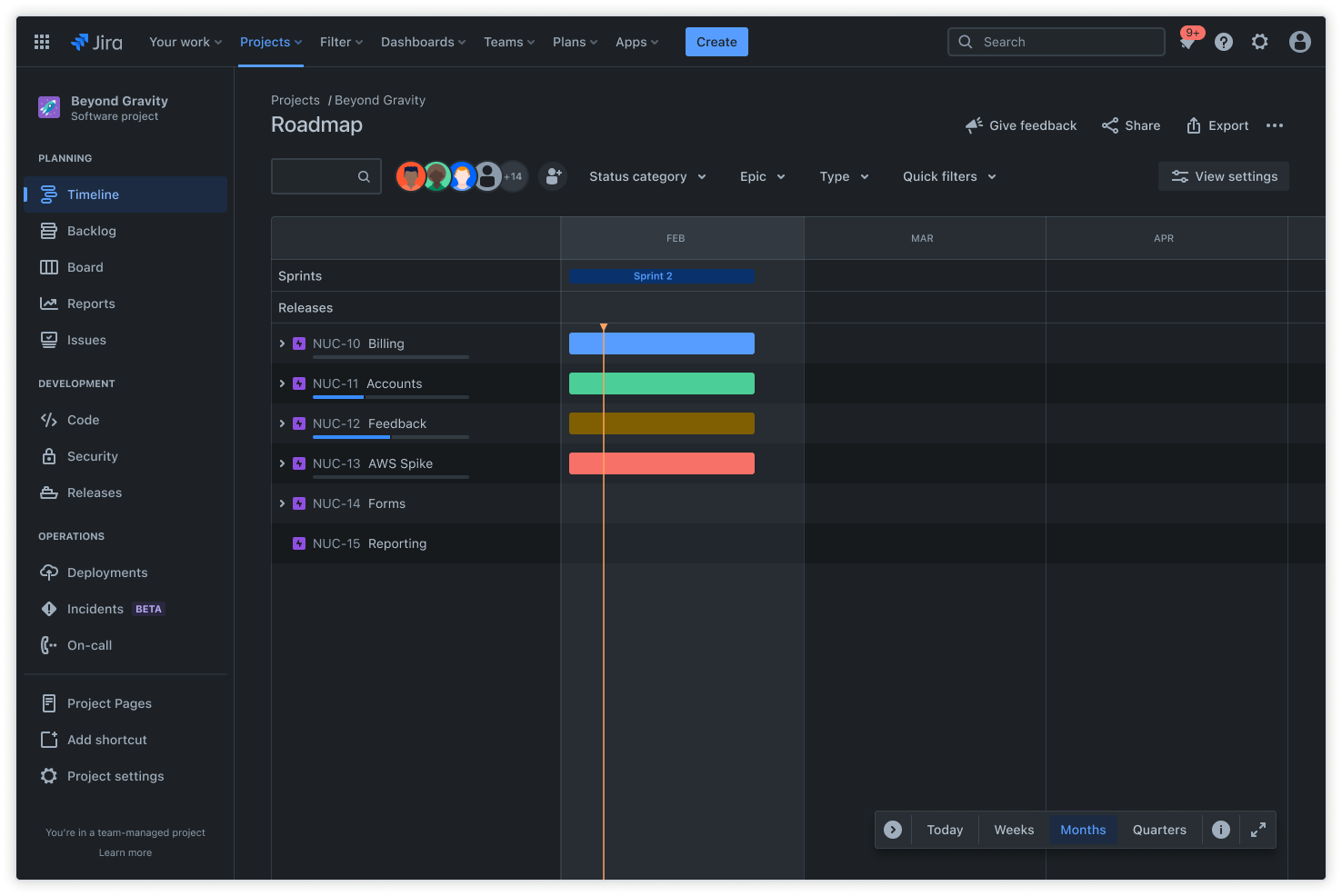
Jira Timeline is the built-in planning view in Jira software spaces (Atlassian’s newer name for Jira projects). It puts your epics and their child work items on a calendar, so you can see the plan without opening ten tabs.
What can you do with Jira Timeline?
- Visualize work: Show epics, tasks, and other supported work items across a timeline.
- Manage schedules: Set start and due dates, then drag bars to adjust them.
- Track dependencies: Draw Block links between work items and spot scheduling conflicts.
- Monitor progress: See status, progress, sprints, and releases next to the bars.
- Focus on what matters: Use filters and view settings to hide the noise.
Where Jira Timeline has limits
- One space at a time. A standard Timeline shows work from a single Jira space. Fine for one team, tight for a release that spans several.
- One kind of dependency. The Timeline uses the Blocks link type. It can tell you that one item blocks another, but not that two tasks should start together or finish together.
- No dependency-driven scheduling. When a task slips, dependent items don’t move on their own. Someone has to drag them, and hope they don’t miss one.
To be fair to Jira, there’s a bigger sibling. Jira Plans, available on Premium and Enterprise, plans across several spaces and teams. It’s a strong choice for portfolio planning in Jira, though it means a plan upgrade and the plan still lives in Jira.
Gantt Chart for Confluence: 3 ways to build one
Yes, you can plan in Confluence, and you have three options. Which one fits depends on how much scheduling you need and where your tasks live.
1. Use the native Roadmap Planner
Confluence’s Roadmap Planner macro draws simple timelines with lanes, bars, and markers. It’s handy for showing project phases and key dates to stakeholders. It has no task dependencies or auto-scheduling, though, and Atlassian notes it isn’t available in live docs yet, so you’ll need a regular page.
2. Embed a Jira Timeline
If the work already lives in Jira, you can embed its Timeline on a Confluence page. It stays in sync with Jira, making it a good option for stakeholders who never open Jira. It’s still a Jira Timeline, though, with the same limits.
3. Use a Gantt chart app
A third-party app lets you build and manage the schedule in Confluence itself. Depending on the app, you get task hierarchies, dependencies, milestones, and auto-scheduling. This is the option for teams that treat Confluence as their project home base.
4. Create advanced Gantt charts with ConfluPlan
ConfluPlan is a planning app for Confluence with Timeline, Kanban, and Gantt views. Its Gantt chart gives you:
- A structured task hierarchy: tasks and subtasks, organized as a work breakdown structure.
- Four dependency types: finish-to-start (FS), start-to-start (SS), finish-to-finish (FF), and start-to-finish (SF).
- Auto-scheduling: dependent tasks move when an earlier task changes.
- Milestones: mark deliverables, approvals, and deadlines.
- Interactive charts on pages: embed the Gantt in any Confluence page, where readers can view and track tasks without opening the app.
If your tasks live in Jira, ConfluPlan’s Timeline and Kanban views can bring in Jira work items. The Gantt view is for plans you build in Confluence.
Both Jira Timeline and a Confluence Gantt chart put your schedule on a calendar. The differences show up once real work hits the plan.
Jira Timeline vs. Confluence Gantt Chart: 4 Key Differences
1. Task organization and project structure
Jira Timeline follows the work item hierarchy your Jira admin set up. You see epics and their child items, and the plan stays tied to the workflows your team already uses to get things done.
A Confluence Gantt chart lets you build the structure the project needs. You can break the work into phases, deliverables, and nested tasks, a classic work breakdown structure, without first turning every activity into a Jira work item.
Example: A consulting firm plans a client implementation in five phases: discovery, analysis, implementation, testing, and handover. Each phase holds its own tasks. In Jira, that structure would need to fit your issue types. In a Confluence Gantt, the phases are simply the top of the tree.
2. Dependencies and automatic scheduling
Jira Timeline shows Block links between work items and flags conflicts, for example, when a blocked item is scheduled to start before its blocker ends. Fixing the dates is up to you.
Meanwhile, a Confluence Gantt chart supports four dependency types:
- Finish-to-start (FS): B starts after A finishes.
- Start-to-start (SS): B starts when A starts.
- Finish-to-finish (FF): B finishes when A finishes.
- Start-to-finish (SF): B can’t finish until A starts.
With auto-scheduling on, a change to one task moves the tasks that depend on it.
Example: A website project has design approval, frontend development, content writing and testing. Frontend can’t start until design is approved (FS). Content writing can start alongside frontend (SS). Testing can’t wrap up before frontend does (FF). Now design approval slips by a week. In Jira Timeline, you drag the dependent bars one by one. In a Gantt chart with auto-scheduling, the knock-on dates update for you, and you get on with your day.
Jira Plans offers more dependency and scheduling options than the standard Timeline, but it’s a Premium and Enterprise feature and still lives in Jira. Jira Timeline helps you see blockers while a dedicated Gantt chart helps you manage what happens when they bite.
3. Milestones and progress
Jira Timeline shows dates, statuses, and progress for Jira work items, along with sprints and releases. Releases often double as milestones.
A Confluence Gantt chart has dedicated milestones for checkpoints that aren’t really tasks: a client sign-off, a steering meeting, a go-live date. You can also track progress against the planned schedule.
Example: A professional services team runs a client engagement with two review meetings, an approval gate, and a final delivery date. Marking each one as a milestone makes it obvious, at a glance, whether the project is on track or quietly drifting.
4. Collaboration and documentation
Jira Timeline works with Jira work items and workflows, and you can embed it in Confluence so stakeholders can take a look.
A Confluence Gantt chart puts an interactive plan right on the pages where your team already writes things down: briefs, requirements, decisions, and meeting notes.
Example: A project manager builds a client delivery page in Confluence with the brief, requirements, meeting decisions, and the Gantt schedule. Stakeholders read the context and check the timeline in one place, instead of playing detective across three tools.
At a glance: Jira Timeline vs. ConfluPlan Gantt
|
Feature |
Jira Timeline |
Confluence Gantt with ConfluPlan |
|---|---|---|
|
Where you plan |
Jira |
Confluence |
|
Task structure |
Jira work item hierarchy |
Your own task and subtask hierarchy |
|
Dependencies |
Blocks |
FS, SS, FF, SF |
|
Auto-scheduling |
No |
Yes |
|
Milestones |
Releases and key work items |
Dedicated milestones |
|
Scope |
One Jira space |
Any plan you build |
|
Jira data |
Native |
Not in Gantt view (Timeline and Kanban views can use Jira work items) |
|
Best for |
Jira-centered delivery |
Detailed plans next to project documentation |
When Should You Use Jira Timeline or a Gantt Chart?
There’s no wrong answer here, only a wrong fit. Use these two checklists to see which way your project leans.
Choose Jira Timeline when…
- Most of your team’s work already lives in Jira.
- You plan work items within one Jira space.
- Your dependencies are simple, mostly “this blocks that.”
- You want to track scheduled work, blockers, sprints, and releases.
- You’d rather stick with built-in Jira features than add another app.
Example: A software team plans stories, tasks, and releases within a single Jira space. Timeline gives them everything they need without extra setup.
Choose a Gantt chart in Confluence when…
- Your project briefs, requirements, and meeting notes already live in Confluence.
- You need more than one dependency type, and a single delay tends to ripple through the plan.
- You want auto-scheduling instead of dragging dates around by hand.
- You organize the project as phases, deliverables, and milestones, not as Jira work items.
- Stakeholders review the schedule on Confluence pages.
- The Roadmap Planner feels too basic for the job.
Example: A consulting firm manages deliverables, client approvals, documentation, and deadlines in Confluence. A Gantt chart built with ConfluPlan keeps the schedule next to the documents everyone is already reading.
Still on the fence? Ask yourself one question: where does the source of truth for this project live? If the answer is Jira work items, start with Jira Timeline. If it’s a Confluence page, plan there too.
Can you add Jira work items to a Gantt chart in Confluence?
ConfluPlan’s latest update extends its Jira integration to Gantt charts, so you can bring Jira work items into your Confluence Gantt chart, so you don’t have to pick one tool over the other. Plan the project in Confluence, and pull in the Jira work your team is already tracking.
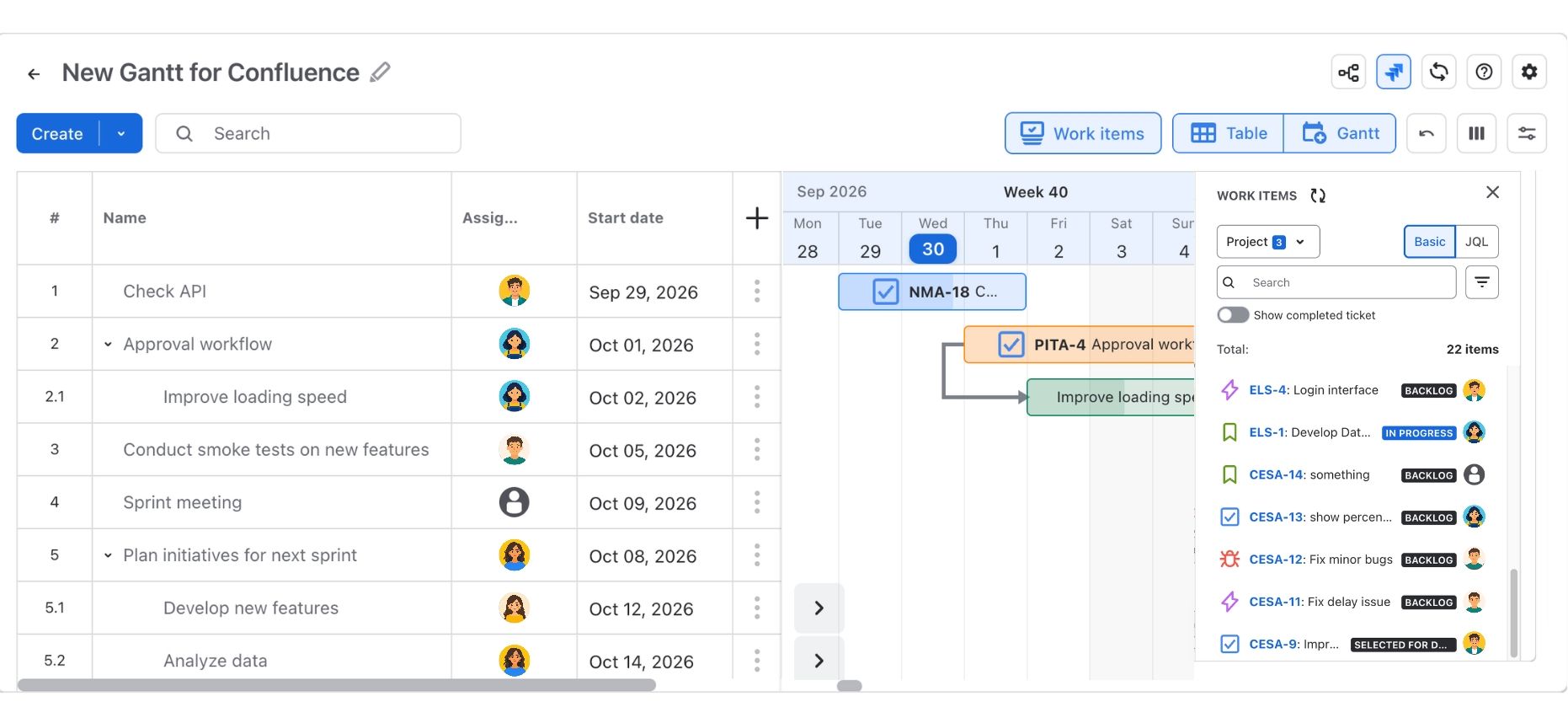
That gives you the best of both worlds. Developers keep working in Jira, while the project manager keeps the full schedule, with phases, dependencies, and milestones, on a Confluence page. No more retyping ticket titles into a spreadsheet at 6 p.m. on a Friday.
It’s especially handy when a project mixes Jira work with tasks that never go near Jira, such as client approvals, training sessions, or content reviews. Everything lands on one Gantt chart, in one place.
What Jira integration adds to your Gantt chart:
- One chart for all the work: Jira work items and Confluence-only tasks sit side by side on the same timeline.
- A plan built around real work: Add phases, dependencies, and milestones around the Jira work your team already tracks.
- Each team stays in its own tool: Developers keep updating work in Jira. Project managers and stakeholders follow the plan in Confluence.
- Less copy and paste: No more rebuilding the Jira backlog by hand every time you update the schedule.
Final Verdict for Jira Timeline vs. Gantt Chart
Neither tool wins every round. Jira Timeline is the practical pick when your tasks and delivery already run through Jira. A Gantt chart in Confluence, built with an app like ConfluPlan, is the better fit when you need several dependency types, auto-scheduling, and milestones, right next to the documents that explain the project.
Pick the tool that matches where your work lives and how tangled your schedule is. Your future self, the one handling the next delay, will thank you.
Frequently Asked Questions
Is Jira Timeline the same as a Gantt chart?
Not quite. Jira Timeline is a Gantt-style view of Jira work items. It shows dates, progress, and Blocks dependencies, but it doesn’t offer several dependency types or auto-scheduling like dedicated Gantt tools.
Does Jira have a built-in Gantt chart?
Jira’s closest built-in option is Timeline, available in Jira software spaces. On Premium and Enterprise plans, Jira Plans adds planning across several spaces and teams.
Does Confluence have a built-in Gantt chart?
No. Confluence has the Roadmap Planner macro for simple timelines with bars, lanes, and markers, but it doesn’t support dependencies or auto-scheduling, and it isn’t available in live docs yet. For a real Gantt chart, you need an app.
Can you create a Gantt chart in Confluence without Jira?
Yes. Apps like ConfluPlan let you build a Gantt plan directly in Confluence, with its own tasks, dependencies, and milestones, and no Jira work items required.
Can I embed Jira Timeline in Confluence?
Yes. You can embed a Jira Timeline on a Confluence page, and it stays in sync with Jira. That shows an existing Jira plan; it doesn’t create a separate Gantt chart you manage in Confluence.