
If your team writes plans in Confluence and tracks work in Jira, you know the drill: the project page says one thing, the Jira board says another, and someone is copying updates between them at 6 p.m. on a Friday. Learning how to plan projects in Confluence with Jira work items keeps the plan and the work connected, so they stop drifting apart like two ships in the night.
This guide covers what the native Jira integration can do, where it falls short for real planning, and how ConfluPlan adds interactive roadmaps, Kanban boards, and Gantt charts to Confluence pages, synced with Jira.
Why use Jira and Confluence together for project planning
Jira and Confluence each do one half of the job well. Used together, they cover the full trip from “we should build this” to “it shipped.”
1. Confluence is the planning hub
Confluence is where the thinking happens. Project briefs, requirements, decision logs, meeting notes, and retrospectives all live here. It answers the big questions: why are we doing this, what does success look like, and what did we agree on last Tuesday?
Long-form context needs room to breathe. A Jira comment thread is a poor home for a 40-message debate about scope, while a Confluence page with inline comments handles it nicely.
2. Jira is the execution engine
Jira is where the doing happens. Work items, sprints, workflows, assignees, due dates, and releases all live here. It answers the practical questions: who is doing what, by when, and is it actually moving?
3. What goes wrong when they’re disconnected
When the two tools don’t talk, small problems pile up fast:
- Duplicate updates: Someone updates a ticket, then updates the status page, then forgets one of them.
- Stale plans: The Confluence roadmap still shows the original dates long after Jira tells a different story.
- Confused stakeholders: Managers and partners who don’t live in Jira can’t see progress without asking someone, which means more meetings nobody wanted.
Connecting them means the plan points to the work, and the work points back to the plan.
A quick note on terms: Atlassian has renamed “issues” to work items and Jira “projects” to spaces in Jira Cloud. This article uses the new names, but you’ll still see the old ones in older docs and in some menus.
Native Jira integration in Confluence: what you get out of the box
Once your Jira and Confluence Cloud sites are connected, you get a solid set of features without installing anything extra. Here are the ones that matter most for project planning.
1. Create Jira work items from a Confluence page
This is the bridge from plan to action. While viewing a Confluence page, highlight any text and select + Jira issue (the button may still use the old name) to create a work item in the Jira space of your choice.
A few things make this especially handy:
- Bulk creation: If your requirements live in a table, you can create one work item per row in a single pass.
- AI-written descriptions: On Confluence Premium and above, with Atlassian Intelligence turned on, AI reads the highlighted text and the surrounding page to draft a summary and description for you.
- Built-in context: The new work item links back to the page it came from, so developers can see the “why” with one click.
2. Turn whiteboard sticky notes into Jira work
If your team plans visually, Confluence whiteboards let you convert sticky notes into Jira work items in a few clicks. Your brainstorm turns into a backlog before the coffee goes cold.
3. Embed live Jira data with the Jira work items macro
The Jira work items macro is the workhorse of any Confluence status page. You can use it to:
- Show a table of work items from a JQL search or Jira URL, with the fields and order you choose
- Display a single work item, or a hand-picked set of them
- Show a count of work items, such as “open bugs: 14”
- Create a new work item and display it on the page right away
Two small features save a lot of time. First, pasting a Jira work item link or a search URL into the editor automatically converts it into the macro. Second, whenever a page mentions a work item through the macro, Jira adds a link back to that page automatically.
4. Embed Jira timelines with Smart Links
You can paste a link to a Jira timeline (formerly called a roadmap) into a page, or type /Jira in the editor to find it. Smart Links let you show it as a full embed, a compact card, or a simple inline link, depending on how much page space you want to give it.
5. Jira gadgets on Confluence pages
Jira dashboard gadgets, such as charts and filter results, can also be rendered on Confluence pages. It works the other way too: you can show a Confluence page or activity stream on a Jira dashboard.
6. Quick win: a self-updating project status page in 5 minutes
- Create a Confluence page called “Project status.”
- Paste the URL of a Jira filter for your project’s open work items. It converts into a live table.
- Add a second macro showing work items done in the last 7 days.
- Embed your Jira timeline below the tables.
- Share the link with stakeholders and retire your weekly status email.
Where native integration falls short for planning
The native features are great for reporting. Planning is a different story, and teams usually hit the same few walls.
1. You can look, but you can’t plan
Embedded Jira content is mostly read-only on the page. You can see work items and their status, but you can’t drag them along a timeline, change their duration, or reorder them. Any real planning still means opening Jira in another tab and hopping back and forth.
2. Filtered timeline embeds are limited
Many teams want to embed just one slice of a Jira timeline, such as a single epic or release.
According to an open Atlassian request (CONFCLOUD-85124), that kind of filtered embedding has been restricted. Teams fall back to embedding the whole unfiltered timeline or pasting screenshots, which go stale the moment you hit Publish.
3. No Gantt chart or dependencies in Confluence
Confluence has no native Gantt chart or work breakdown structure (WBS) view. The built-in Roadmap Planner macro is handy for lightweight roadmaps, but its bars aren’t connected to Jira work items, so you’re back to updating two things by hand.
4. Not everyone lives in Jira
Marketing, HR, leadership, and outside partners often prefer a clear visual plan inside the document they’re already reading. Sending them to a Jira board can feel like handing someone a map in a language they don’t speak.
This is where a planning app built for Confluence earns its keep.
How ConfluPlan’s Jira integration works
ConfluPlan (listed on the Atlassian Marketplace as “Timeline Roadmap, Kanban & Gantt Chart for Confluence”) is a planning app by DevSamurai. It gives you three board types: a Features Timeline, a Kanban board, and a Gantt chart with task dependencies and auto-scheduling. Additionally, it lets you drop any of them onto a Confluence page with the /confluplan macro.
More importantly, the Jira integration is what turns those boards from pretty pictures into working plans. It works with all three board types, and here is how it fits together.
Step 1: Connect ConfluPlan to Jira
Setup takes a couple of minutes. Based on the connection guide:
- Install ConfluPlan in Confluence from the Atlassian Marketplace.
- In Jira, open Manage apps, then click Take me there to reach the Connected apps page.
- Search for ConfluPlan and click View app details.
- Find the Jira row and click Connect.
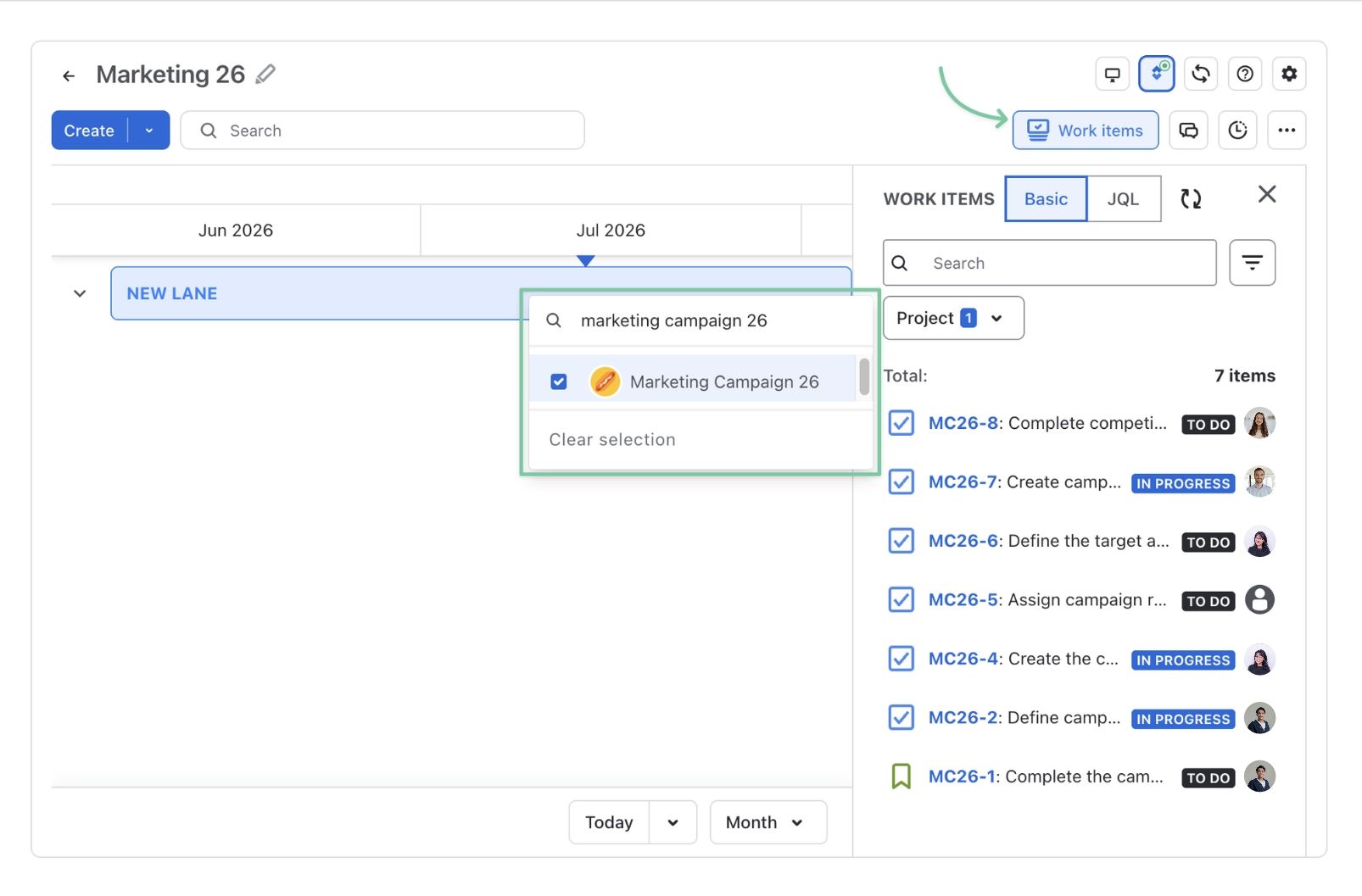
Back in a ConfluPlan board, switch on the Jira integration toggle. The icon lights up when it’s active.
Step 2: Add Jira spaces and plan work items
Open the Work items box on your board and search for the Jira spaces you want to include. You can add several spaces to one board, which is useful for cross-team or portfolio plans.
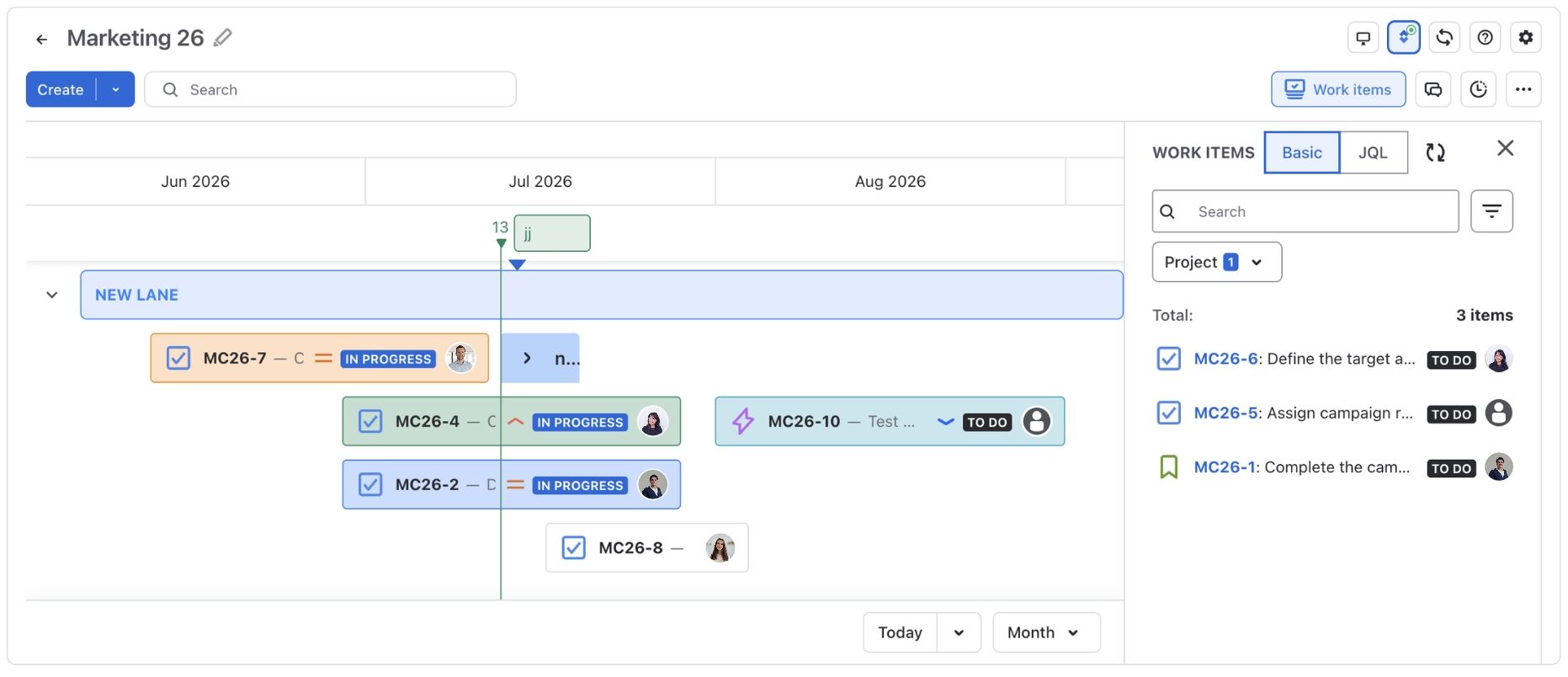
From there, planning is a matter of drag and drop. Pull a work item card onto the timeline or Gantt chart, then stretch or shrink it to set its duration.
Step 3: Link, create, or unlink work items
Not every task starts life in Jira. If you sketched out a plan with blank tasks first, you can:
- Link a blank task to an existing Jira work item
- Create a new Jira work item straight from the task, synced to Jira
- Unlink a task from its work item if plans change
This means you can rough out a plan in Confluence, then promote tasks to Jira as they firm up.
Step 4: Map start and end dates to Jira fields
Field mapping is where the two-way sync happens. Click the mapping button next to the Jira integration toggle and map ConfluPlan’s Start and End dates to the matching date fields in Jira. After that, moving a bar on your Confluence page updates the dates in Jira automatically.
Good to know: field mapping isn’t available for the Kanban board type. Use a Timeline or Gantt board when you need date sync.
Pricing at a glance
ConfluPlan has moved to a paid model, but it still offers a free plan for teams of up to 10 users. Jira integration is included in the paid plans. Check the Marketplace listing for current prices for your team size.
Step-by-step: planning a project in Confluence with Jira and ConfluPlan
Let’s put it all together with a realistic example: your team is redesigning the company website, with a launch in 12 weeks. Design, content, and development are all involved, and leadership wants to see progress without learning JQL.
- Write the project brief: Create a Confluence page from a project plan template. Cover the goal, scope, team, risks, and launch date. Invite comments and get sign-off before anyone opens Jira.
- Turn requirements into Jira work items: On your requirements page, highlight each major deliverable and create it as a Jira epic. Use a requirements table to bulk-create the stories underneath.
- Add a Gantt chart to the page: Type /confluplan on your project page and insert a Gantt board. This is now the visual plan everyone will look at.
- Pull in your Jira work items: Turn on the Jira integration, add your Jira space in the Work items box, and drag the epics and stories onto the Gantt chart.
- Set dependencies and map dates: Link tasks that depend on each other (content can’t go live before the CMS is ready). Map Start and End to your Jira date fields so the schedule stays in sync.
- Add live status below the plan: Insert a Jira work items macro with a JQL filter, such as open work items in this space sorted by due date. Now the page shows both the plan and the current state of the work.
- Share the page: Send the link to leadership and partners. They see the timeline, the dependencies, and the status table in one place.
- Keep it running week to week: When a task slips, drag its bar in ConfluPlan and the Jira dates update with it. No double entry required.
- Close out cleanly: Write release notes and a retrospective in Confluence. Turn any action items into Jira work items so they don’t vanish into thin air.
The result is a single page that tells the full story of the project, from why it exists to what’s done today.
Best practices for project planning in Confluence
A few habits keep your Confluence and Jira setup tidy long after the kickoff excitement wears off.
- Keep one source of truth per fact: Requirements live in Confluence, task status lives in Jira. Link between them instead of copying text, or the two versions will drift apart.
- Standardize with templates: Use the same brief, requirements, and retro templates across projects. People find things faster when every project page has the same shape.
- Decide who owns the dates: Before mapping fields, agree whether the schedule is driven from the Confluence board or from Jira. Two sources of truth for dates are a recipe for confusion.
- Keep JQL filters focused: A status table with 300 rows helps nobody. Filter by epic, release, or status so each macro answers one question.
- Check permissions before you share: Viewers need the right Jira access to see embedded Jira data, and guests should only see what they need to.
- Tidy up when the project ends: Archive old planning pages and close linked work items, so next quarter’s search results aren’t cluttered with ghosts of projects past.
Conclusion
Good project planning comes down to keeping the plan and the work in the same conversation. Confluence holds the reasoning, Jira holds the tasks, and the native integration ties them together with linked work items, live tables, and timeline embeds.
When you need more than a view, such as dragging work across a timeline, mapping dependencies on a Gantt chart, or sharing an interactive plan with stakeholders, ConfluPlan fills the gap. It lets you plan projects in Confluence with Jira work items directly on the page, with dates that stay in sync both ways.